Google Workspace Account Setup Guide
1. Account Activation & Two-Step Verification
- Sign in at accounts.google.com using the credentials provided by the administrator.
- Navigate to myaccount.google.com/security and add a Recovery Email and Recovery Phone Number.
- Enable 2-Step Verification from the same Security page.
- Install Google Authenticator on a mobile device and scan the QR code presented during setup.
- Download and store the backup codes securely. These codes allow account access if the mobile device is unavailable.
- Sign out and sign back in to verify that 2-Step Verification is functioning correctly.
Note: The organization mandates 2-Step Verification enrollment within one day of account activation. Failure to enable it will result in the account being blocked, preventing login from the next day onwards.
2. Gmail Setup — Desktop
2.1 Quick Settings
- Sign in at mail.google.com.
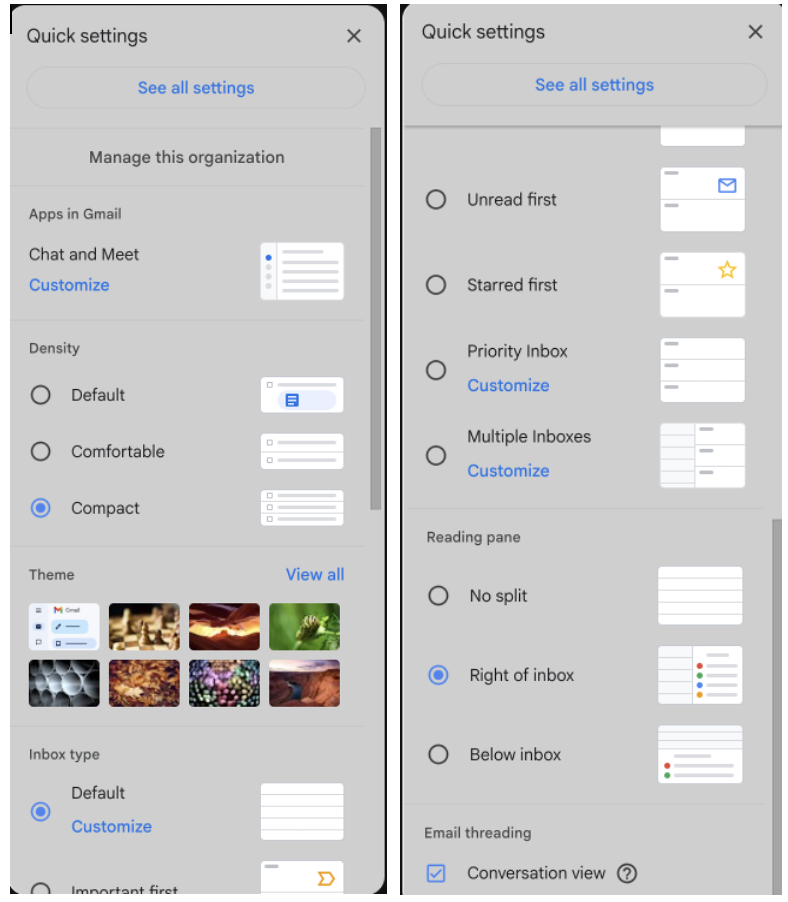
- Click the gear icon (top-right) and apply the following settings:
| Setting | Value |
|---|---|
| Density | Compact |
| Theme | Dark (Full Black) |
| Inbox type | Default |
| Reading pane | Right of inbox |
| Conversation view | On |
2.2 General Settings
Navigate to See all settings → General and apply:
| Setting | Value |
|---|---|
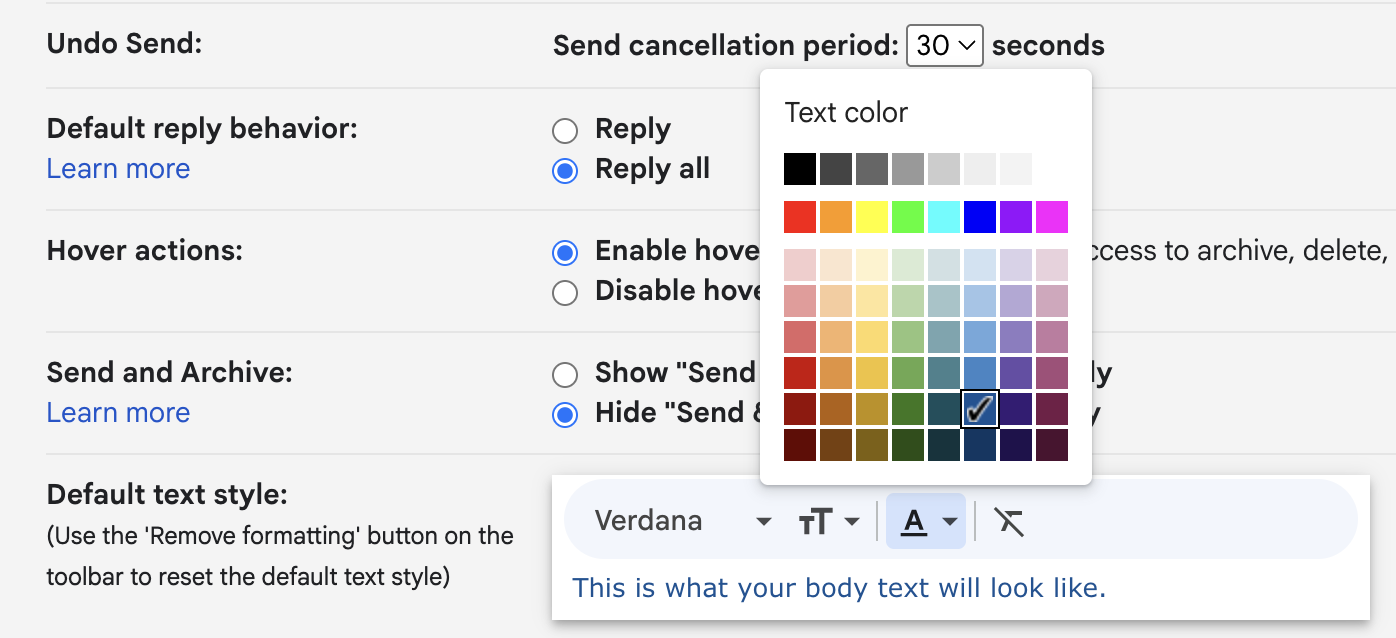
| Undo Send | 30 seconds |
| Default reply behavior | Reply all |
| Default text style | Verdana, Normal size, Blue — RGB(11, 83, 148) |
2.3 Signature
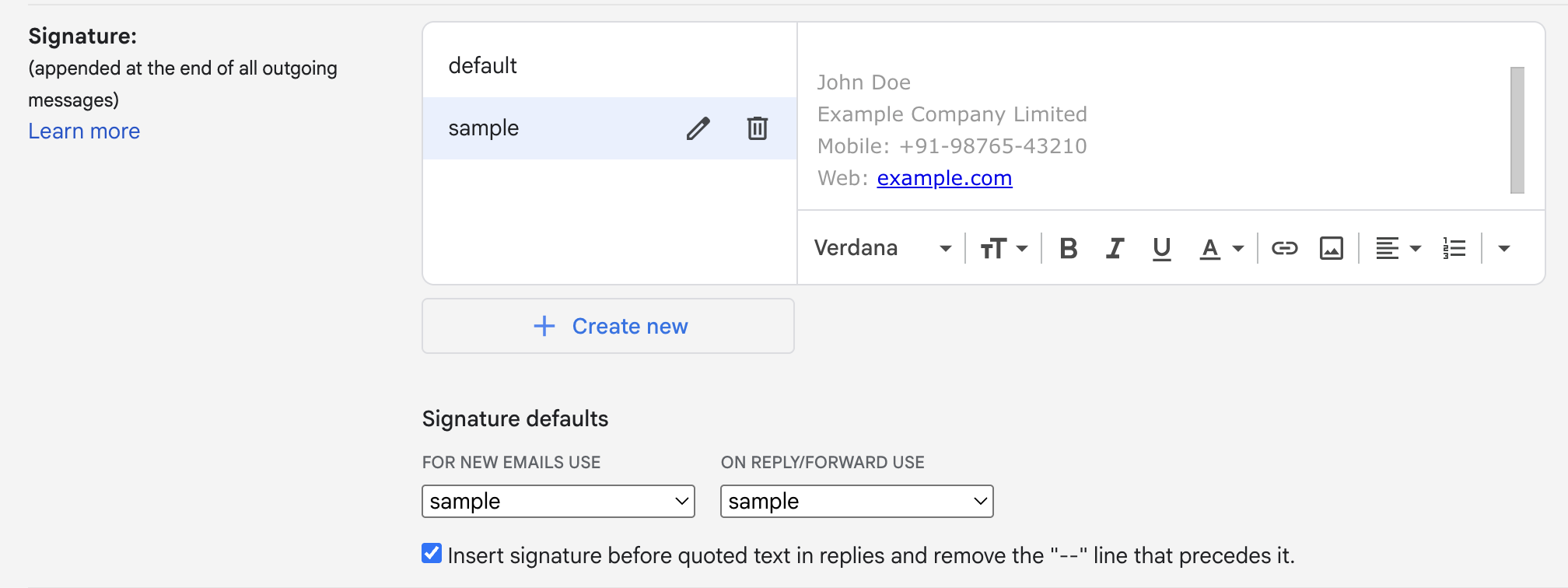
- Create a signature matching the reference below. Use the same font and style as mentioned in reference image.
- Apply the signature to both New emails and Replies/Forwards.
- Enable "Insert this signature before quoted text in replies and remove the '--' line that precedes it."
- Save all changes.
3. Gmail Setup — Mobile
3.1 General Settings
Navigate to Gmail app → Settings → General and apply:
| Setting | Value |
|---|---|
| Email conversation view | On |
| Conversation list density | Compact |
| Default email reply action | Reply all |
| Auto-fit email messages | On |
3.2 Account-Specific Settings
Tap the account email address within Settings and apply:
| Setting | Value |
|---|---|
| Email notifications | All |
| Mobile signature | Same content as desktop signature (font style and color are not customisable on mobile) |