Proxmox VM Config
#TODO VM settings for Windows, other OS to be included.
Windows 11
Step 1: Create VM - OS
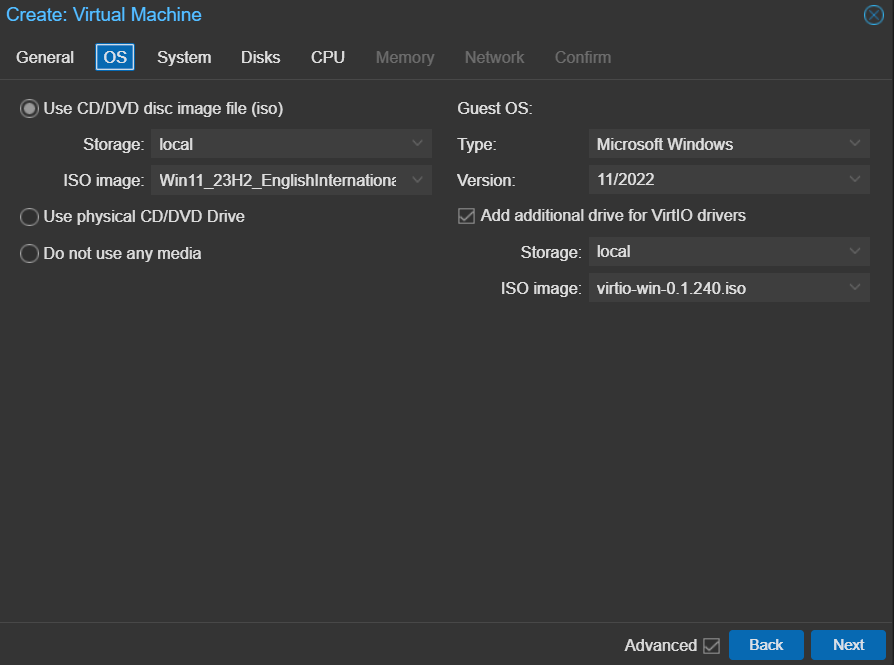
Note: Mount the virtio-win drivers so disks are detected during Win11 installation.
Step 2: Create VM - System
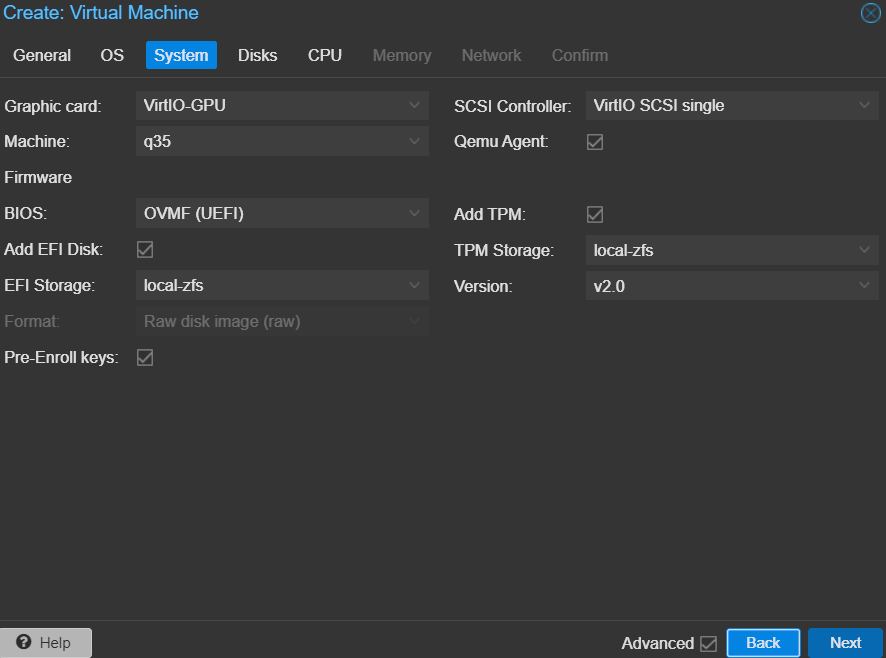
Note: VirtIO-GPU provides GPU acceleration for guest OS applications. Multiple guests can share the same discrete GPU or iGPU of the host.
Note2: Win11 guest can resize screen resolution and it will work on noVNC remote access.
Step 3: Create VM - Disk
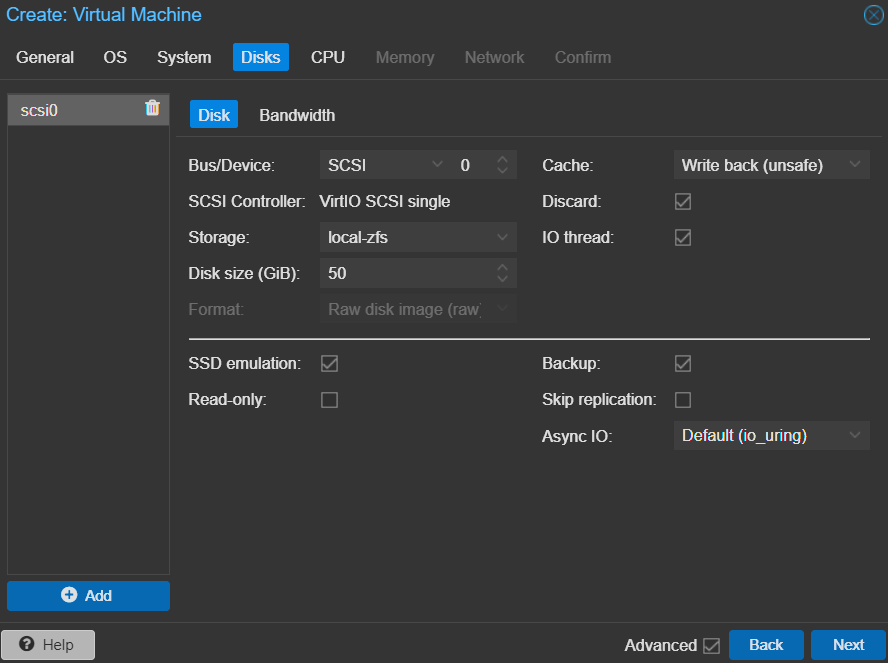
Note: Using Bus/Device as SCSI enables SSD emulation in the Guest. Win11 will enable SCSI TRIM so deleted filesystem blocks can be released back to Proxmox host and thus ensure allocated but unused capacity is released back to Proxmox. This will ensure that thin provisioned disk volumes will remain thin.
#TODO elavborate qm agent $VMID fstrim command.
Step 4: Create VM - CPU
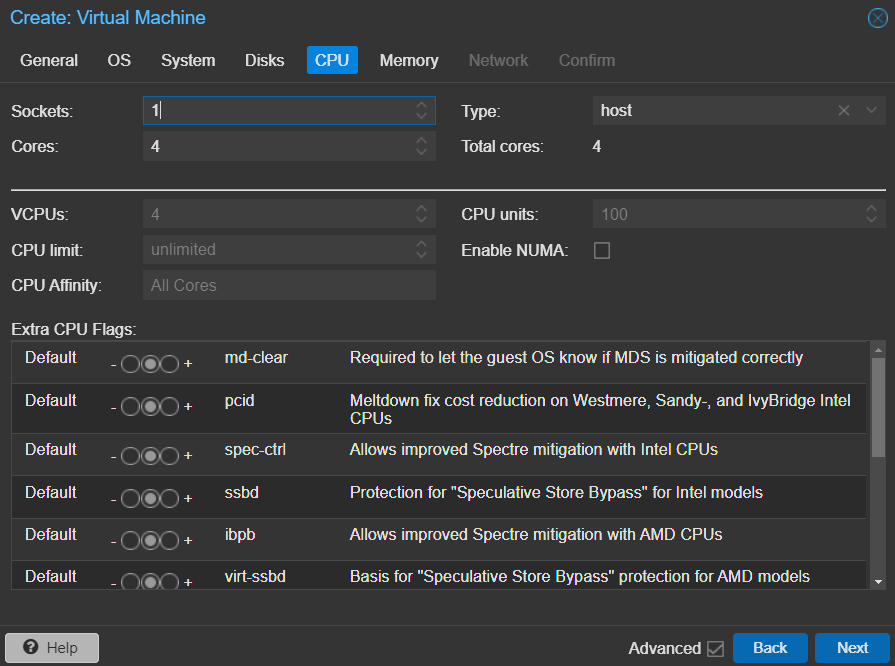
Step 5: Create VM - Memory
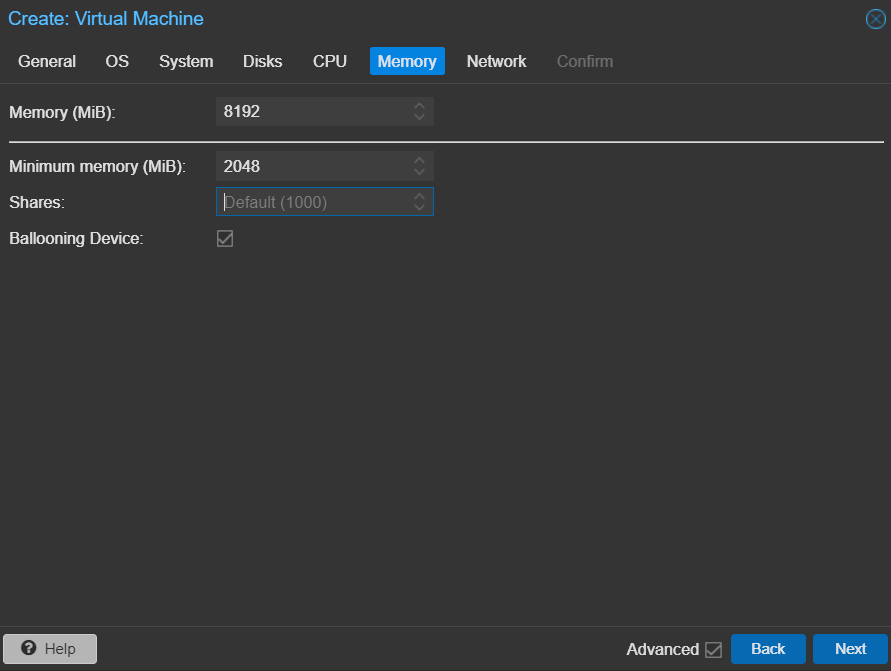
Note: For Win11 use 8GB RAM with 2GB minimum. For Ubuntu Server, use 8GB RAM with 1GB minimum.
Note2: Ensure Guest Tools are installed for Win11 Guests. Linux has native kernel support for Memory Ballooning and does not require any service.
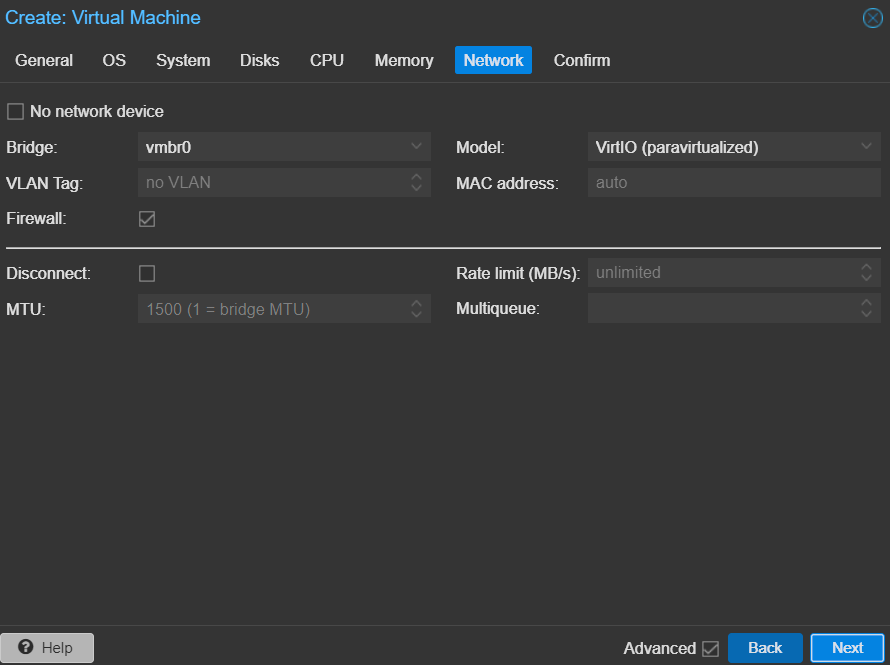
Step 6: Create VM - Network
qm config Output
root@mox:~# qm config 200
agent: 1,fstrim_cloned_disks=1
balloon: 2048
bios: ovmf
boot: order=scsi0;ide2
cores: 4
cpu: host
efidisk0: local-zfs:vm-200-disk-0,efitype=4m,pre-enrolled-keys=1,size=1M
machine: pc-q35-8.1
memory: 8192
meta: creation-qemu=8.1.5,ctime=1707678724
name: win11-base
net0: virtio=BC:24:11:D0:46:32,bridge=vmbr0,firewall=1
numa: 0
ostype: win11
scsi0: local-zfs:vm-200-disk-1,cache=unsafe,discard=on,iothread=1,size=50G,ssd=1
scsihw: virtio-scsi-single
smbios1: uuid=c3c8709f-c523-421d-be30-ca0b6b0ba2f4
sockets: 1
tpmstate0: local-zfs:vm-200-disk-2,size=4M,version=v2.0
vga: virtio
vmgenid: a3a9f617-4eb3-4dd9-a3cf-4b3785c88e2e
Guest Tools Installation
#TODO document guest tools installation and verification